Custom Lists in techSHIP support bulk value management through CSV and XLSX files.
This guide explains how to import values, configure import options, interpret the import results, and export existing Custom List values.
TABLE OF CONTENTS
Before You Begin
Make sure you have an existing Custom List to work with. To create or configure a list, refer to Create and Manage Custom Lists [Step-by-Step Guide].
Make sure you have the required permissions to import and export Custom List values. For information about the required access, refer to techSHIP User Permissions Structure [Information].
 | For detailed conceptual information and advanced configuration, refer to Understanding Custom Lists [Information]. | |
| | ||
Prepare an Import File
Before importing values, make sure your file meets the supported requirements:
- File format: Use a CSV or XLSX file containing the values you want to import.
- File size: The file must not exceed 10 MB.
- Row limit: A single file can contain up to 1,000,000 rows.
- Value length: Each value can contain up to 255 characters.
- Empty values: Blank values are rejected during import.
- Duplicate values: Duplicate detection is case-insensitive, so values that differ only by letter casing are treated as duplicates.
A file can contain both accepted and rejected rows. Valid values can still be imported while individual blank or overlength values are reported as rejected.
Access a Custom List
Use the Custom List page to access the import and export actions for a specific list.
 | From the main navigation menu, click Clients, and then click Custom Lists. |
 | Locate the Custom List you want to manage, and click its settings action. |
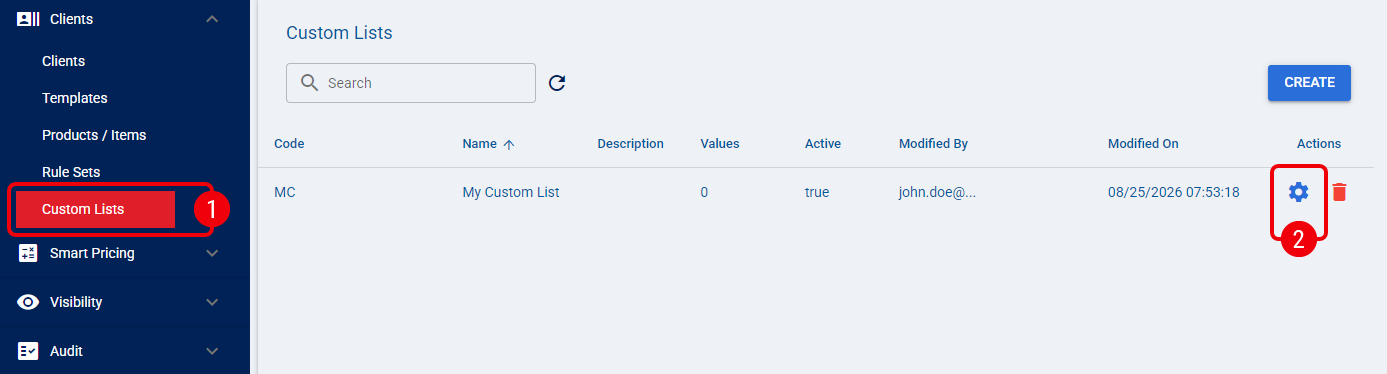
The selected Custom List opens. You can now use Actions to import or export its values.
Export Values
Use the Actions menu to download all values currently stored in a Custom List as a CSV or XLSX file.
An exported file can also be used as a template for a subsequent import. This is useful when you want to update many values while preserving a supported file structure.
Export as CSV
Use Export CSV when you want to download the current list values as a CSV file.
Click Actions, and then click Export CSV.
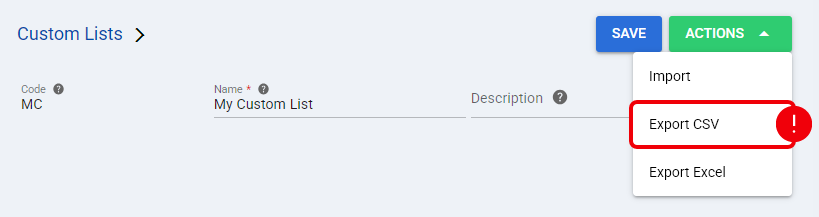
The CSV file downloads using the Custom List Code as its filename and includes a Value header followed by the current list values. You can update the downloaded file and use it as a template for a subsequent import.
Export as Excel
Use Export Excel when you want to download the current list values as an XLSX file.
Click Actions, and then click Export Excel.
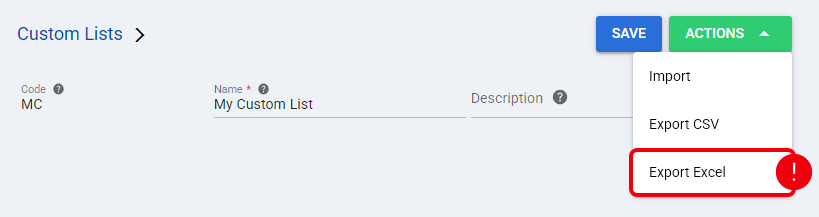
The XLSX file downloads using the Custom List Code as its filename and contains the current list values. You can update the downloaded file and import it again when you need to perform a bulk update.
Import Values
Use Import to add values from a CSV or XLSX file or to replace the current list contents.
| If you are preparing a bulk update, you can first export the Custom List and use the downloaded CSV or XLSX file as a template. Update the values in the exported file, and then import it back into the list. | |
| | ||
| Click Actions, and then click Import. |
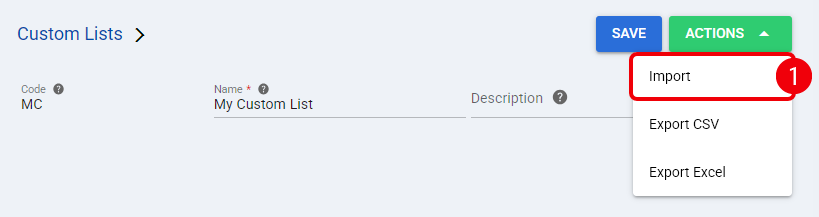
| Complete the Import dialog, and then click Import: |
- File: Select the CSV or XLSX file containing the values you want to import.
- Replace Existing Values: Select this option to replace the current list contents with the imported values. Clear it to retain the existing values and append new values.
- Trim Values: Select this option to remove leading and trailing spaces from imported values. Clear it to preserve surrounding spaces.
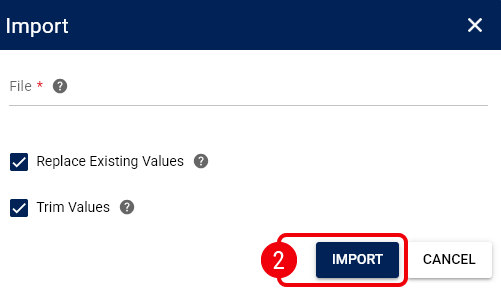
 | When Replace Existing Values is selected, existing values that are not included in the imported file are removed from the list. | |
| | ||
After you click Import, techSHIP processes the file and displays an import result. Review the result before continuing with additional imports or exports.
Interpret the Import Results
The import result summarizes how the values in the file were processed.
Review the result for the following categories:
- Imported values: Values successfully added to the Custom List.
- Duplicates in the file: Repeated values detected within the imported file.
- Values already in the list: Values that were not added because the Custom List already contained them.
- Rejected rows: Values that could not be imported, including blank values and values longer than 255 characters.
Duplicate detection is case-insensitive. For example, if the list already contains Alpha, importing ALPHA does not create another value.
For imports containing rejected rows, the result provides rejection details for up to 20 rows.
| If the file contains more than 1,000,000 rows, techSHIP rejects the import instead of partially importing the file. The existing list remains unchanged. | |
| | ||
| If the selected file contains no values that can be processed, techSHIP displays The file does not contain any values. | |
| | ||
After you review the import result, you can return to the list values to confirm the imported entries or perform another bulk operation.
Was this article helpful?
That’s Great!
Thank you for your feedback
Sorry! We couldn't be helpful
Thank you for your feedback
Feedback sent
We appreciate your effort and will try to fix the article