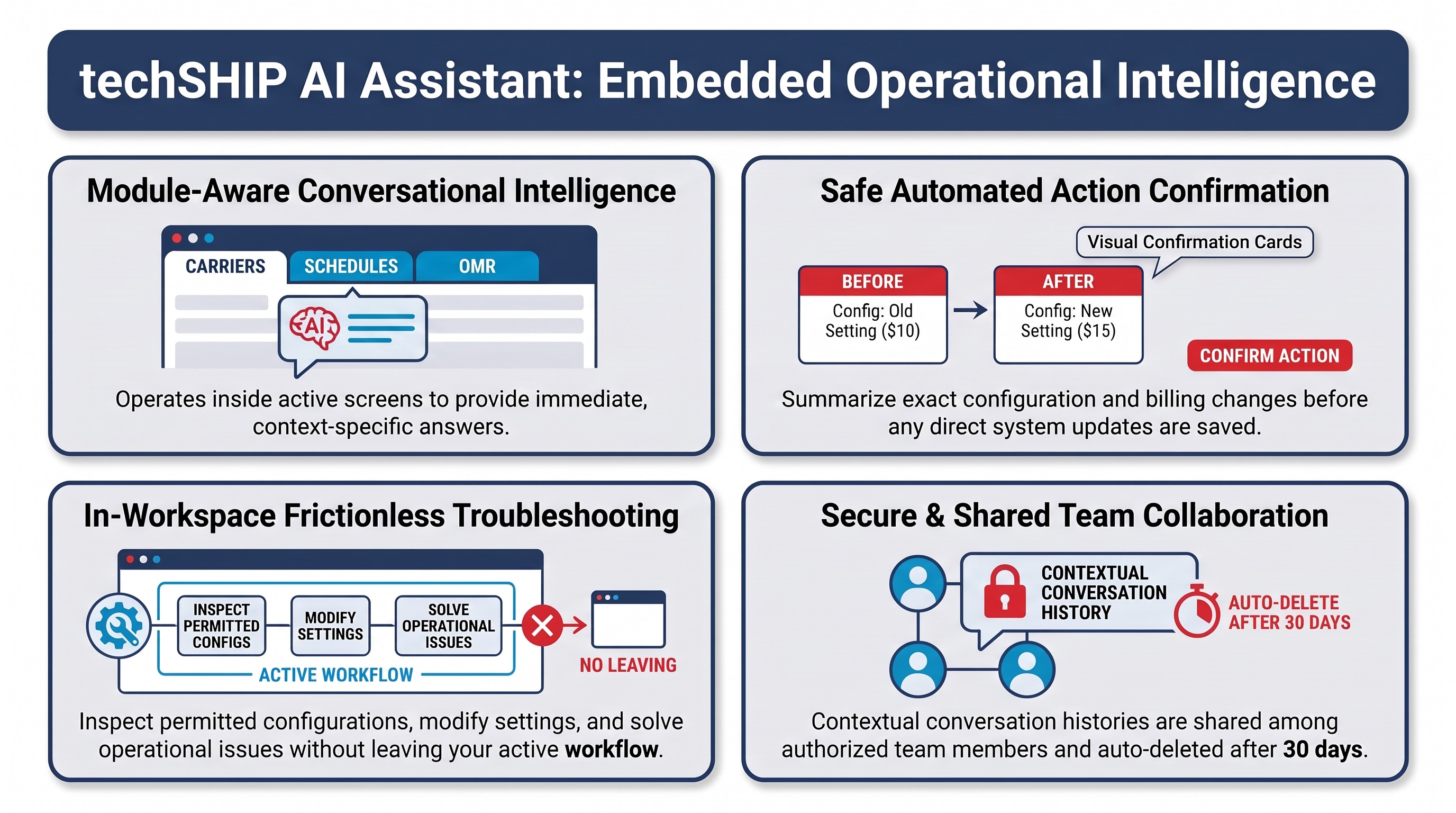
The techSHIP AI Assistant is designed to help you work more efficiently by answering questions, assisting with complex configurations, and troubleshooting fulfillment issues. By leveraging advanced conversational tools, you can resolve operational bottlenecks without ever leaving your current workspace.
This guide covers the core concepts of the centralized AI platform, including its availability across modules, navigating the standard interface, and understanding data handling policies.
Prefer listening? You can download the podcast-style audio attached to this article, which walks you through the key points.
 | AI-Assisted & Human-Reviewed: For general information only. Please double-check important details. | |
TABLE OF CONTENTS
Supported Modules and Availability
You can use the AI Assistant on the screens listed below when the corresponding features are enabled for your location and you have the required access. Review the table for supported capabilities and example requests:
LOCATION | CAPABILITIES | EXAMPLES | ARTICLE |
Orders > My Orders > Order | Scoped exclusively to the currently viewed order context to help you diagnose processing failures or explain specific carrier selections based on live data. | "Why did this order fail?" "Why was this specific carrier selected?" |  |
Carriers > My Carriers > Carrier | Uses the Carrier you are currently viewing as context so you can inspect permitted Carrier configuration and perform supported Carrier and Baseline Account configuration tasks. | “Explain this Carrier’s configuration.” “Create a new Baseline Account under this Carrier.” “Change the label preference for [Baseline Account].” “Compare [Baseline Account A] with [Baseline Account B].” |  |
Clients > Rule Sets > Rule Set | Assists you in building dynamic routing logic. Includes dedicated Undo and Redo buttons directly in the panel to safely revert any AI-generated configuration changes with a single click. | "If the order contains ice cream, add an instruction for 'Refrigerated'. If it is lactose-free or vegan, also add a temperature regime of -30." "Route all orders under 5 lb to Carrier X, Service Y." |  |
Smart Pricing > Custom Pricing Tables > Custom Pricing Table | Assists you in building and managing complex smart pricing matrices and accessorial setups to streamline your rating strategies without manual data entry. | "Give me a list of available service codes." "Why didn't service code XYZ appear in the quote for order ABC?" "Explain step-by-step why I received a $10 rate." |  |
Smart Pricing > Markup Profiles (beta) > Markup Profile | You can review and manage Markup Profiles, Service Groups, and markup matrix values, and validate hypothetical scenarios without changing the configuration. | “Show me the Services available from this profile’s Carrier.” “What is the average configured Markup % across the defined cells in the Priority Service Group? Exclude values that are Not defined.” Preview setting Markup % to 10 for Service Group X, bracket Y, and zone Z. Do not apply the change until I confirm.” |  |
Carriers > Pickup Schedule | Allows you to read and update the schedule using natural language. Supports bulk operations for recurring schedules, exceptions, facility closures/holidays, and moving existing recurring pickup series. | "Add Canadian statutory holidays that fall on business days as closed-location exceptions."
"Add a recurring pickup for carrier X every Monday at 10:00 AM." "Move the Carrier X Monday pickup from 3:00 PM to 4:00 PM." "Move all Carrier Y pickups 30 minutes earlier." | |
Carrier Settings AI Scope
From Carrier Settings, the techSHIP AI Assistant works in the context of the Carrier you are currently viewing. You can inspect permitted configuration and perform supported changes only when the equivalent action is available to you in techSHIP.
- Carrier settings: Inspect permitted Carrier configuration and update supported settings. The Carrier ID remains read-only.
- Carrier operations: Copy the Carrier and enable or disable the Carrier when the equivalent action is available.
- Baseline Accounts: Create a Baseline Account under the existing Carrier, inspect and edit supported settings, copy an account to an eligible destination, and delete an eligible Baseline Account.
- Carrier configuration areas: Inspect and maintain supported Surcharges, Service Codes, and Packages when the corresponding functionality is available.
- Rates: Inspect and update supported rate configuration and manage Simple Rates when available. You can also inspect an existing authorized Custom Pricing Table, but you cannot create or modify Custom Pricing Tables through the Carrier assistant.
The currently viewed Carrier is your working context. If your request could apply to more than one account, destination, or record, the AI Assistant asks you to clarify the intended target before preparing the action.
If you switch to another Carrier while an action is pending, that pending action cannot be applied to the newly viewed Carrier.
Existing protections continue to apply. If you have read-only access to the supported Carrier context, you can inspect permitted information but cannot make changes.
 | Before you enable or disable a Carrier through the AI Assistant, review the billing consequence shown before confirmation. Enabling the Carrier resumes billing for the current cycle. Disabling the Carrier removes it from rate shopping and stops billing in the next cycle. | |
Pickup Schedule
When moving existing recurring pickup series via the Pickup Schedule module, the techSHIP AI Assistant enforces the following rules:
- Forward-Looking Only: Moves apply from today forward; historical pickup occurrences are never rewritten or altered.
- Duration & Exception Preservation: Moving a series preserves its original custom duration window and does not overwrite or modify existing one-off dated exceptions.
Using the AI Assistant
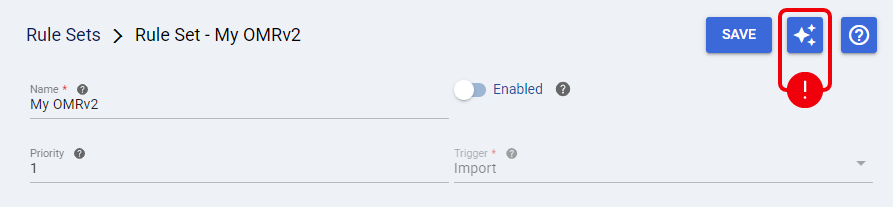
The conversational interface is standardized across the application, utilizing a consistent side panel design. To interact with the tool, click the AI Assistant icon located on the right side of the screen within any supported module.
Navigating the AI Interface
Once the side panel is open, the interface features a consistent layout designed for quick data retrieval and action.
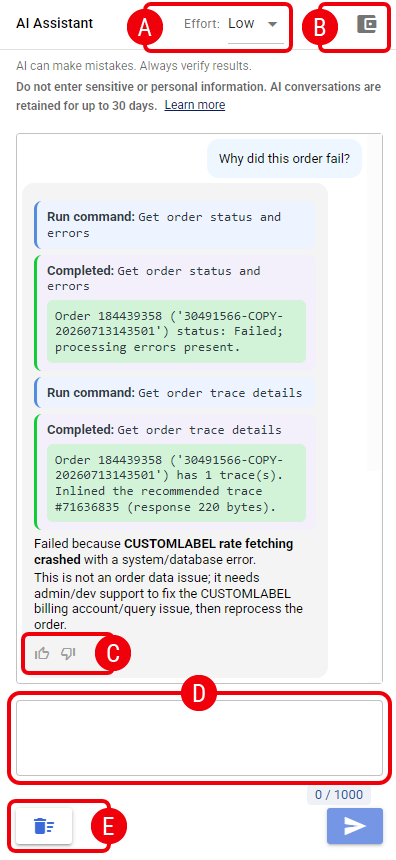
 | Effort Level Dropdown: The centralized platform runs on a standardized GPT 5.5 engine across all integrated modules. To grant you full control over response quality versus generation speed, you can configure the AI behavior directly using this dropdown menu: |
- Low (Default): Provides fast, cost-efficient responses. This is the optimal setting for routine questions or standard system guidance. Unless manually changed, every new conversation automatically defaults to this tier.
- Medium: Balances processing speed with a deeper analytical scan of the available order or routing data.
- High: Prioritizes technical accuracy and depth over speed, making it the best choice when dealing with intricate configurations or complex troubleshooting.
| Selecting a higher effort level consumes a greater amount of your available AI tokens. | |
 | Wallet: Displays your current AI token usage and limit. |
 | Feedback Controls: To help Techdinamics continuously refine and improve response accuracy, you can evaluate every generated answer using the Thumbs Up or Thumbs Down buttons located directly beneath the response. |
When you submit a Thumbs Down, the system automatically captures the full session context—including your prompt, the selected Effort Level, and the referenced data. This session is securely routed to our triage team to enhance future AI performance across the platform.
 | Prompt Input Box: This is the primary text field where you enter your questions or configuration requests. Provide as much detail as possible to get the most accurate, contextual response. |
| For the best results, reference the specific on-screen data or task you are currently working on, as the embedded assistant actively relies on your current module's context to generate accurate answers. | |
 | Clear Chat: Clears the current conversation and resets the conversational context. |
Action Confirmation
Action Confirmation appears when the techSHIP AI Assistant prepares a supported action that will directly save a configuration change. Read-only requests and changes that remain staged until you manually save them do not require this additional confirmation.
Before anything is saved, review the confirmation card. It summarizes the exact proposed action and affected configuration and, when applicable, shows the current value → proposed value so you can verify the consequence.
Use the action-specific primary button to apply only the operation shown on the card, or select Cancel to leave the proposed change unapplied. A conversational reply such as “yes” or “proceed” does not replace the explicit confirmation control.
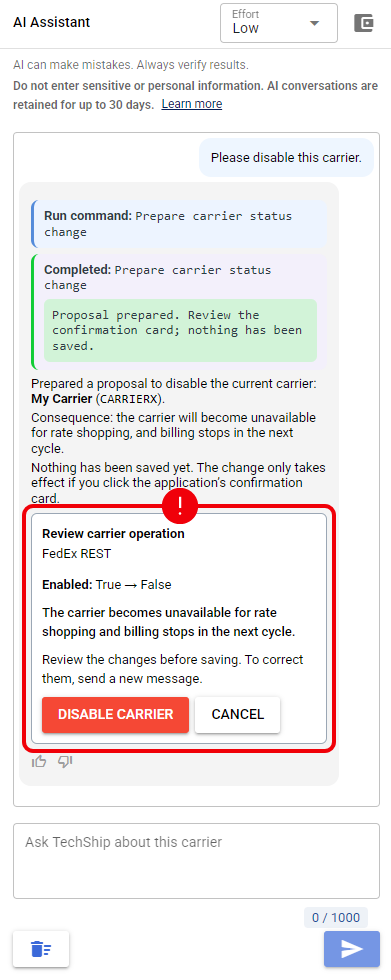
To change the requested operation, send a new instruction. The techSHIP AI Assistant prepares a new proposal and confirmation instead of changing the approval already displayed. If a confirmation is replaced, becomes invalid, or has already completed, it is no longer actionable. Validation or execution errors are displayed prominently so you can review the issue and submit a corrected request.
Privacy, Security, and Data Handling
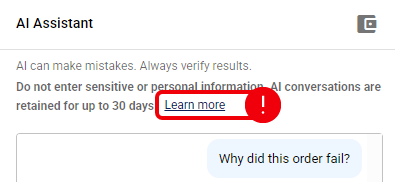
| To protect your operational and Carrier data, do not enter Carrier credentials, passwords, API keys, API secrets, tokens, or other protected secrets into the AI prompt. Avoid entering personal information, confidential records, or payment details unless strictly authorized and necessary for your business purpose. When you use the assistant in the context of a specific record (e.g., a specific Order or Markup Profile), your conversation history belongs to that record or version within your location, not privately to your login. You share that history with authorized colleagues who access the same context. | |
| To support troubleshooting and auditing, all AI conversations are securely stored on Techdinamics servers for up to 30 days before being automatically deleted. Because AI-generated responses can sometimes be inaccurate or outdated, you are responsible for verifying any critical information before executing business decisions. | |
Click the Learn more link within the assistant panel to read detailed information regarding our security policies and the full AI assistant disclaimer.
Was this article helpful?
That’s Great!
Thank you for your feedback
Sorry! We couldn't be helpful
Thank you for your feedback
Feedback sent
We appreciate your effort and will try to fix the article