Viewing tracking details allows you to monitor the location of goods, enhance customer satisfaction, resolve shipment issues, and ensure regulatory compliance.
This guide covers the methods to locate and view shipment details in techTRACK for both authenticated users and unauthenticated (guest) users.
TABLE OF CONTENTS
Locating the Tracking Record
Using the Header Search Bar (Authenticated)
If you are logged in and already have the specific Tracking Number, this is the fastest method:
 | Enter the Tracking Number or Reference in the header search bar. |
 |
Searching by Reference is restricted to shipments belonging to your own organization.
|
 | Click the search icon or press enter. |

Using the Homepage Search Bar (Authenticated)
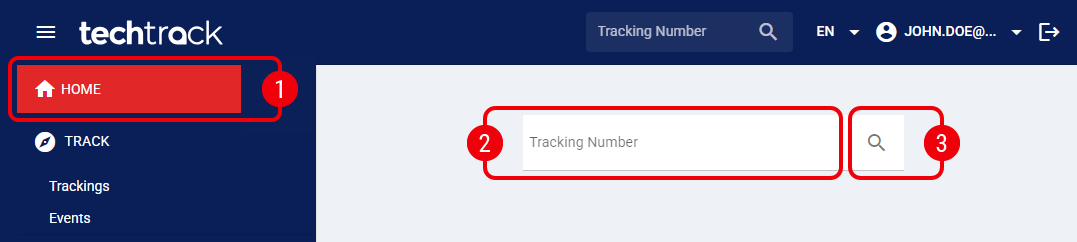
Alternatively, if you are logged in, you can use the main search field on the homepage:
| Click Home from the left menu. |
| Enter the Tracking Number or Reference in the search bar. |
| |
Searching by Reference is restricted to shipments belonging to your own organization.
|
 | Click the search icon or press enter. |
Using the Tracking List (Authenticated)
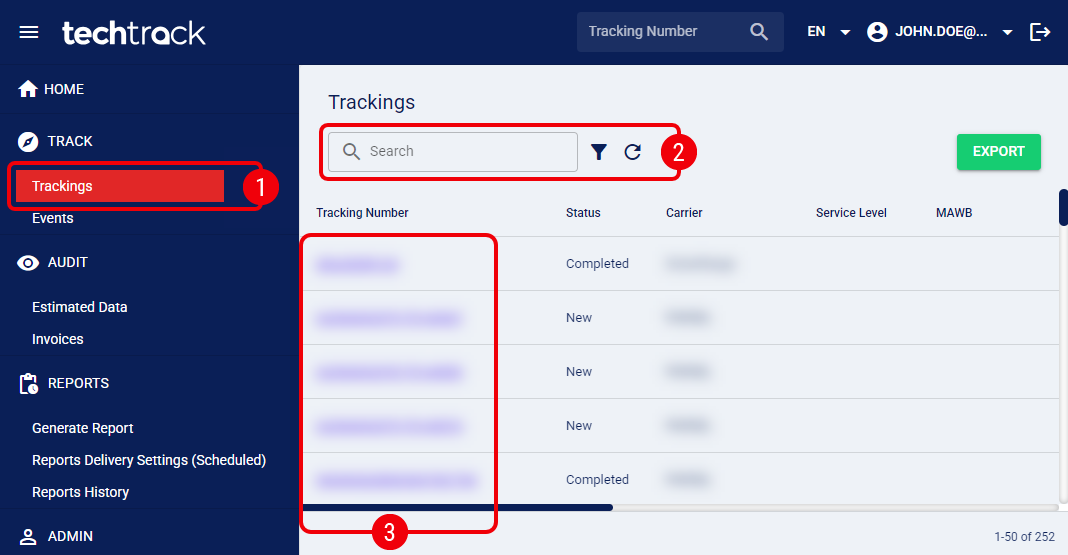
If you are logged in but do not have the tracking number handy, you can find the shipment manually in the Trackings list:
| Click Trackings from the left menu under the Track section. |
| Find the desired shipment using the search components. |
| |
For more information on using these components, see: How to Find Tracking Numbers [Step-by-Step guide].
|
| Click on the desired tracking number. |
Using the Public Search Page (Unauthenticated)
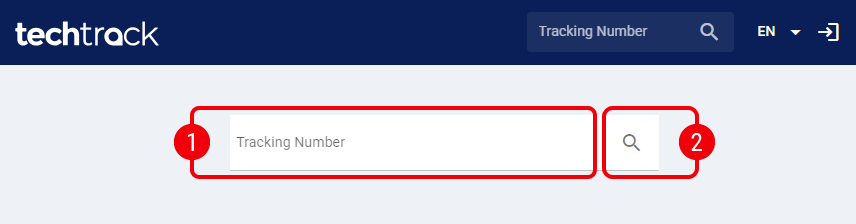
Unauthenticated users (guests) access a simplified search interface. This view is restricted for security purposes. Navigate to the techTRACK public URL and:
| Enter the Tracking Number in the search bar. |
| Click the search icon or press enter. |
| |
Unauthenticated users can only search by Tracking Number.
|
| |
Alternatively, you can perform the same procedure using the header search bar.
|

Was this article helpful?
That’s Great!
Thank you for your feedback
Sorry! We couldn't be helpful
Thank you for your feedback
Feedback sent
We appreciate your effort and will try to fix the article