Monitoring shipment lifecycles is now more efficient with the integration of tracking capabilities directly into the location. Powered by the techTRACK monitoring engine, techSHIP now provides full end-to-end visibility, allowing you to search, filter, and audit shipment statuses in real-time without leaving the application.
This guide covers how to access the new Visibility module, use the enhanced filtering system, and leverage integrated tracking details to monitor your shipments.
 |
For a full overview of all new features, see: What's New in techSHIP: A Guide to the Latest Features [Information].
|
| |
This feature requires special users permissions, as detailed in: techSHIP User Permissions Structure [Information].
|
TABLE OF CONTENTS
Accessing the Tracking Page
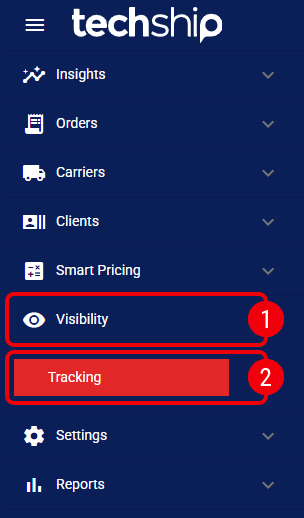
The tracking functionality is located within a dedicated section of the main menu:
 | Click Visibility from the left menu. |
 | Click Tracking. |
Searching and Filtering
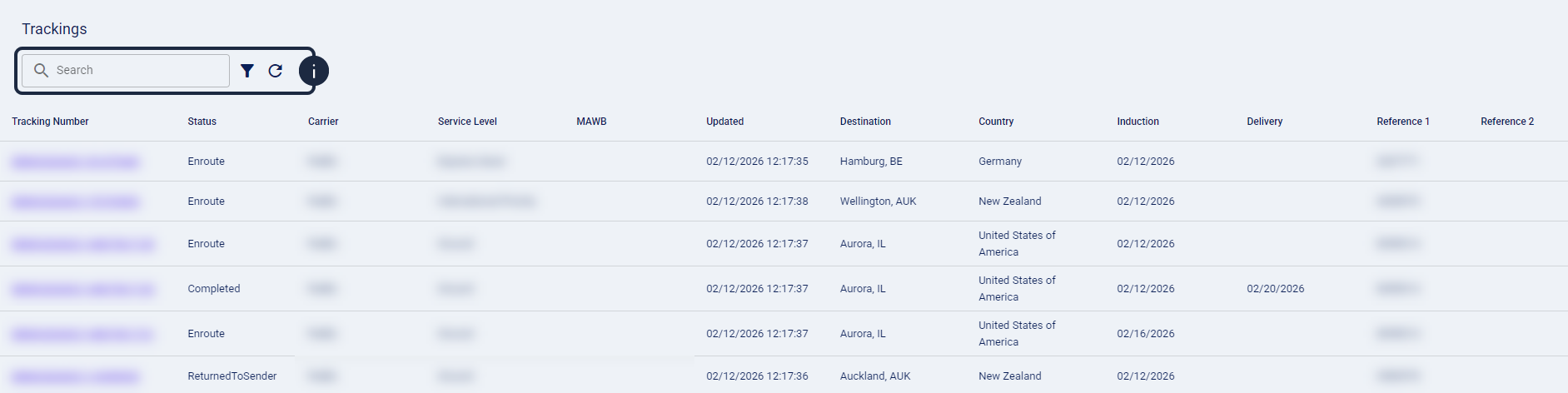
The Tracking page provides a centralized list of shipments for the current location.
| |
The list only displays tracking records associated with the specific location currently selected in the header switcher.
|

To locate specific records, you can enter a Tracking Number or Master Tracking Number in the search bar for a quick search. For more complex queries, click the filter icon to open the Advanced Filter window.
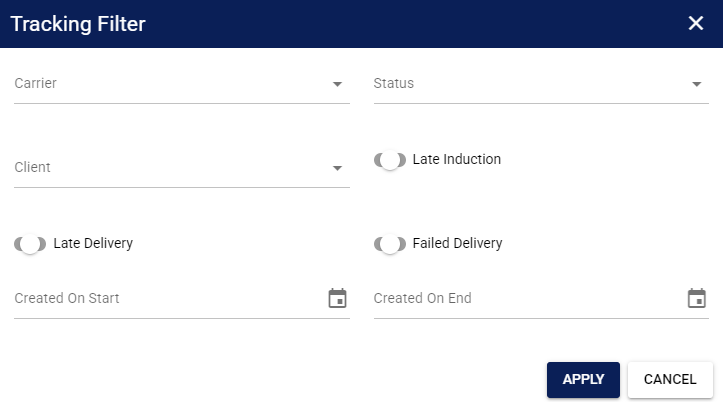
The available Advanced Filter fields have been optimized for techSHIP operations:
- Carrier: Filter results by the carrier responsible for the shipment.
- Status: Filter by the current lifecycle stage of the shipment.
- Client: Filter by the specific client associated with the shipment.
- Late Induction: Identify shipments not yet inducted by the carrier within the expected timeframe.
- Late Delivery: Filter shipments by their Late Delivery classification.
- Failed Delivery: View shipments where a delivery attempt was unsuccessful.
- Created On Start / End: Define a date range based on when the records were created in the system.
All date filters are inclusive and processed in the UTC timezone.
| |
Clicking a Tracking Number with no carrier scans will show an error message. techSHIP requires at least one successful scan to display the Tracking Details page.
|
Late Delivery
Late Delivery uses the shipment's Expected Delivery Date (EDD) to determine whether a shipment meets the late-delivery rule. A shipment without an EDD is not classified as late by this rule.
- Delivered shipments: A shipment can be classified as Late Delivery when it is delivered after its EDD.
- Undelivered shipments: A shipment can also be classified as Late Delivery after its EDD has passed. An undelivered shipment becomes eligible after 12:00 UTC on the day following its EDD.
- Delivery-attempt exception: A delivery-attempt event recorded on or before the EDD prevents the shipment from being classified as Late Delivery, including when the shipment remains undelivered.
- Late Delivery = On: This filter can include both delivered shipments completed after the EDD and undelivered shipments that meet the Late Delivery rule.
- Late Delivery = Off: Where this option is available, it returns delivered shipments that are not classified as Late Delivery.
| For more information about the Expected Delivery Date (EDD) shown in tracking details, see How to View the Expected Delivery Date (EDD) [Step-by-Step Guide]. | |
Leveraging the techTRACK Engine for Visibility
Each Tracking Details page utilizes the techTRACK engine to provide a comprehensive audit trail and advanced monitoring tools.
| |
Advanced feature availability depends on carrier support. See techTRACK & techAUDIT Supported Carriers - Master List [Guides List] for the complete list.
|
Key components:
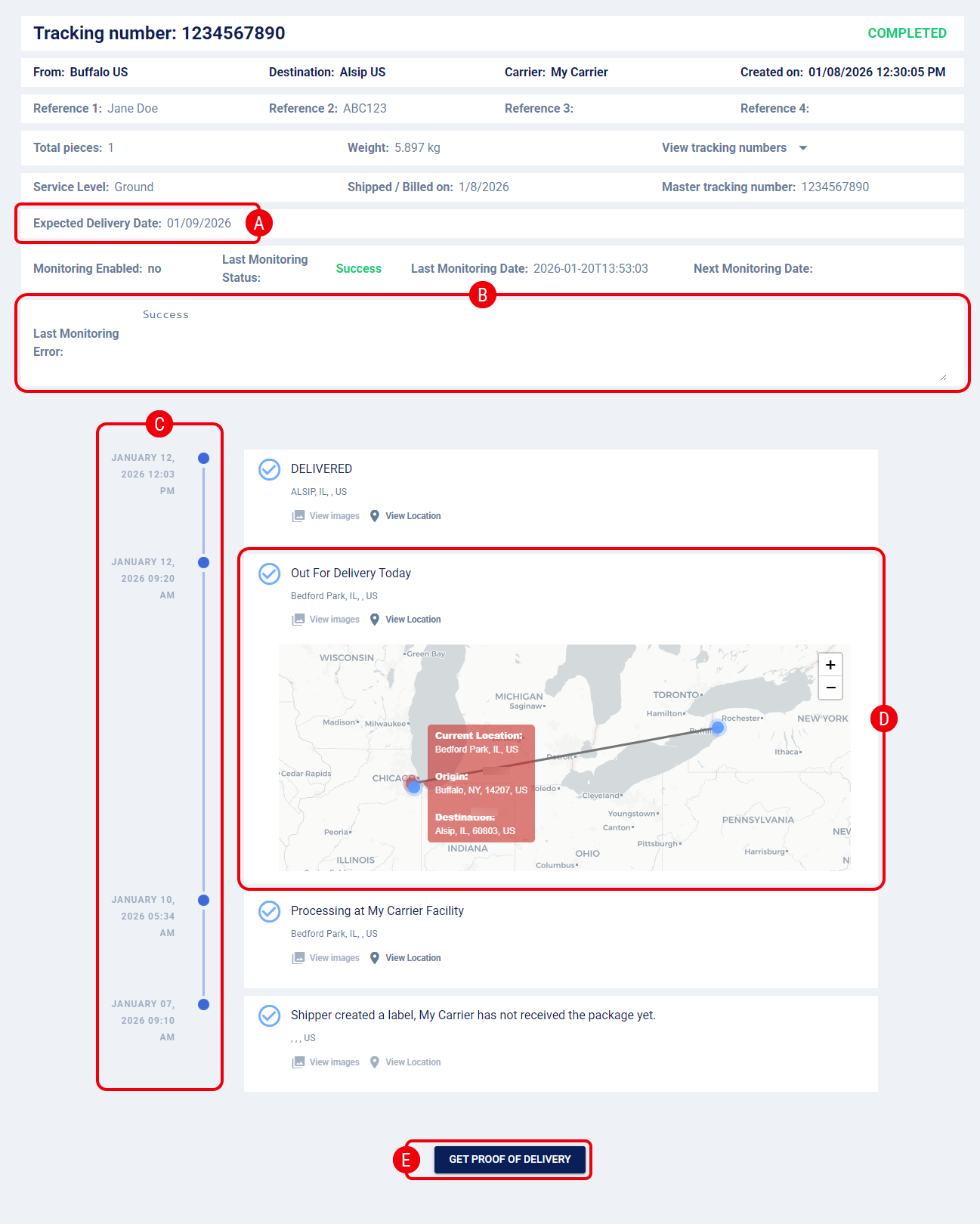
 | Expected Delivery Date (EDD): Displays the carrier-provided estimated arrival date, as detailed in How to View the Expected Delivery Date (EDD) [Step-by-Step guide]. |
 | Last Monitoring Error: Review the latest synchronization results and any exception details, as detailed in How to View Last Tracking Synchronization Error Details [Step-by-Step Guide]. |
 | Tracking Timeline: A visual history of all carrier scans and events. Events are displayed in descending chronological order, with the most recent event appearing at the top. |
 | Location Map: View the approximate location of the shipment on an interactive map, as detailed in How to View Shipment Location [Step-by-Step guide]. |
 | Get Proof of Delivery (PoD): For completed shipments, you can download available PoD files, as detailed in How to Get Proof of Delivery [Step-by-Step guide]. |
| |
Since techSHIP integrates the techTRACK interface as-is, the layouts, components, and tracking logic are identical across both platforms.
|
Was this article helpful?
That’s Great!
Thank you for your feedback
Sorry! We couldn't be helpful
Thank you for your feedback
Feedback sent
We appreciate your effort and will try to fix the article