When processing and printing, if you have bad API Printer Keys configuration, orders could get stuck in Printing status.
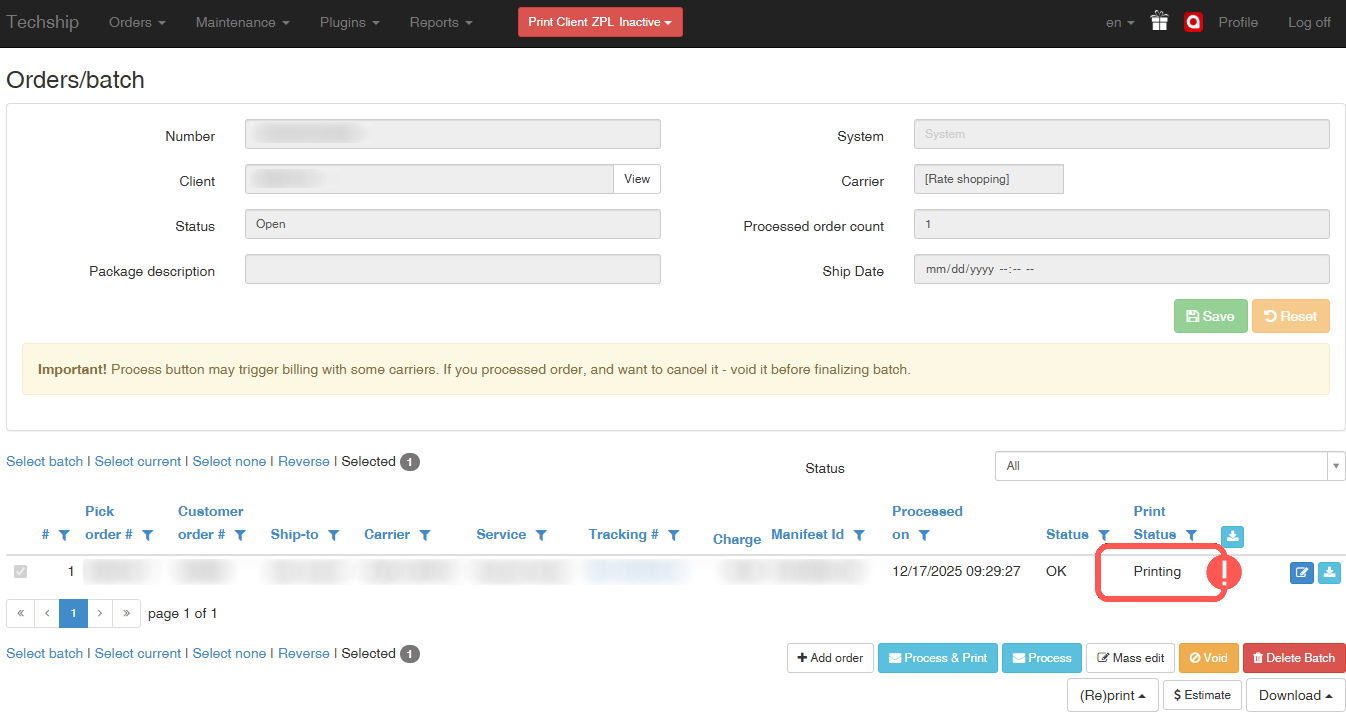
To solve this issue, verify the following possible causes:
CONFIRM YOUR PRINTER NAMES
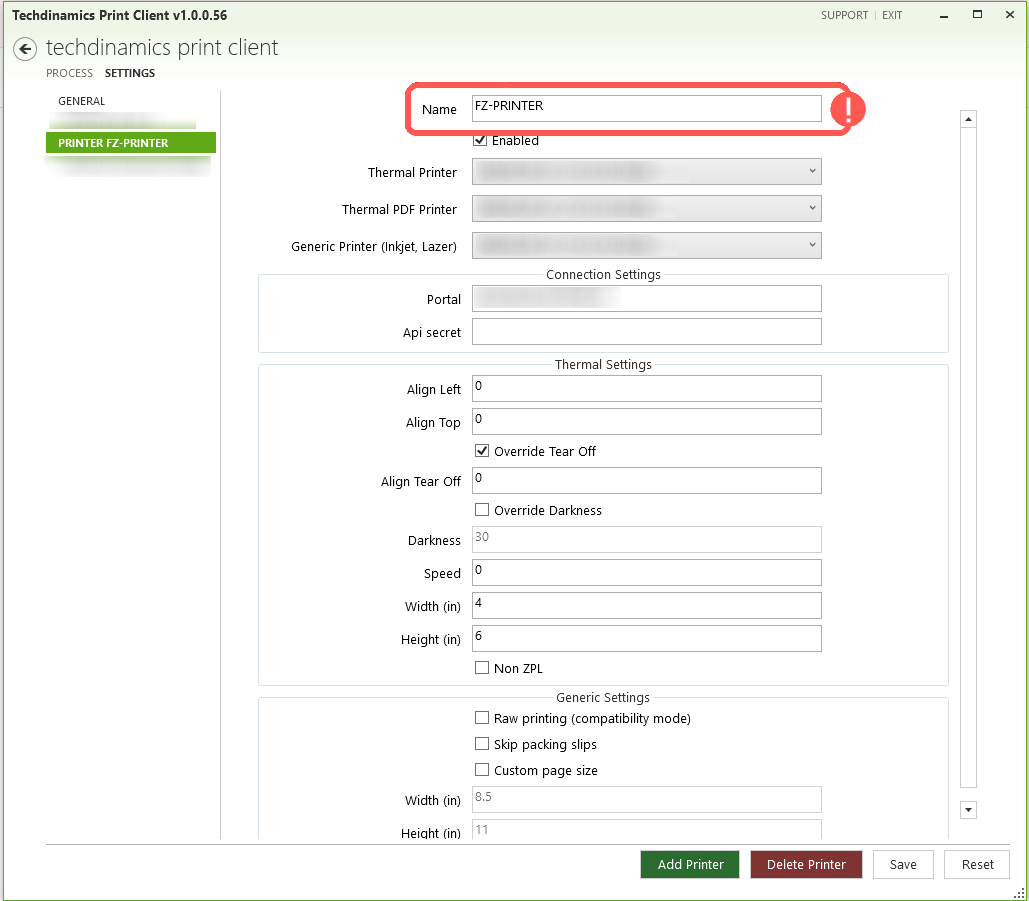
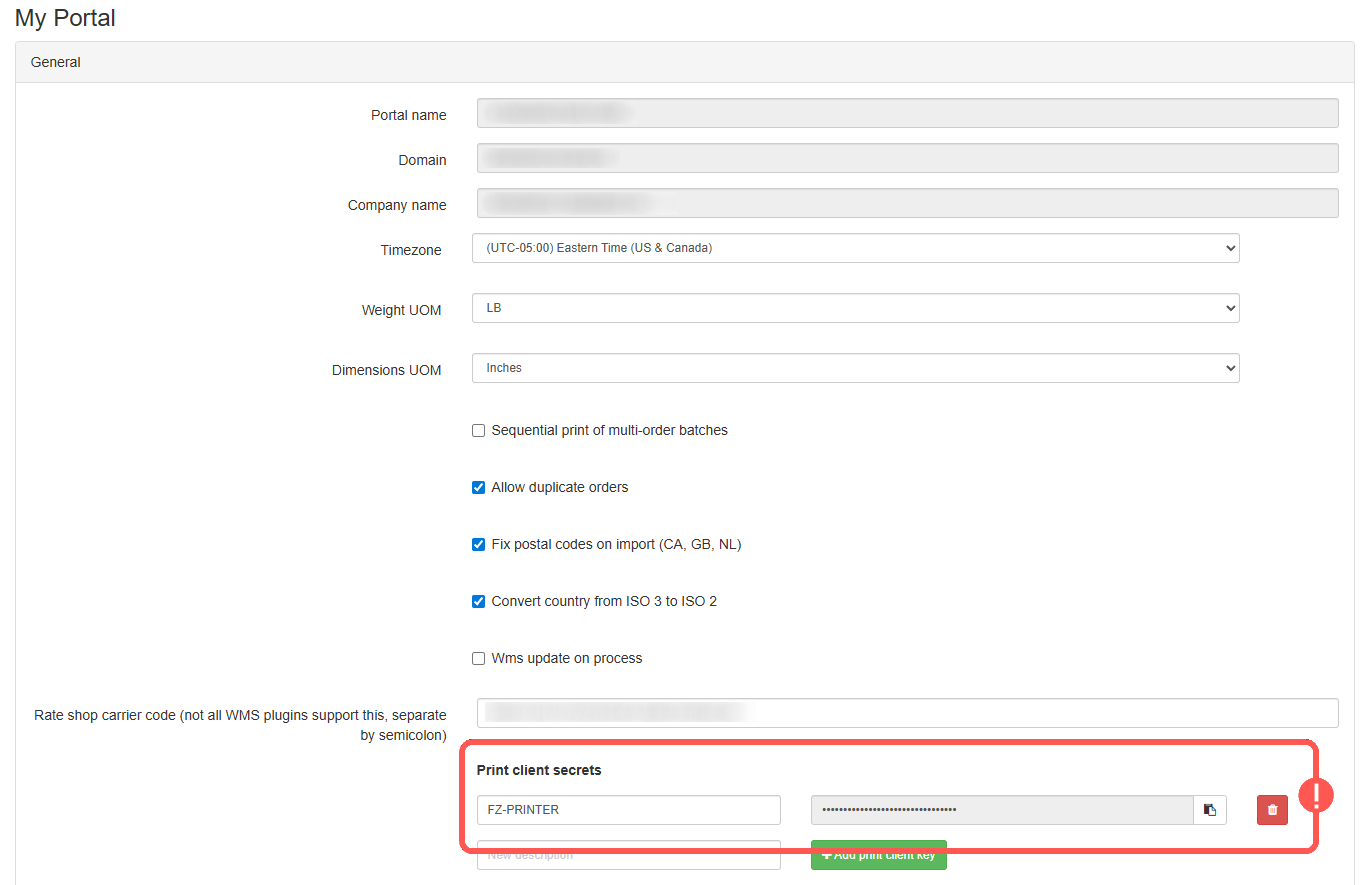
Your printer names in the Techdinamics Print Client or Desktop Client must match the name in the API Key you have created for the printers.
For this:
1. Open your Techdinamics Print Client or techSHIP Desktop Client
2. Access Settings
3. Verify the name of your Printer Profile
In parallel, in your Web Portal:
1. Access Maintenance
2. Access My Portal
3. Verify the names your Printers have, and that these match with the ones set in the Print or Desktop Client
If they don't, correct them accordingly and Save the changes.
CONFIRM YOU HAVE INDIVIDUAL API KEYS FOR EACH PRINTER
Make sure that you are not sharing the same Printer API Keys (Print Client Secrets) in more than one Print Client or Desktop Client setup. Just as the logic used for Printer prints duplicate labels [Solution].
If so:
1. Create as many keys as printers you'll have, as described in: How to Get an API Secret for the Techdinamics Print Client [Step-by-Step Guide].
2. Configure them as described in, depending of the application(s) you will use:
- How to add a new Printer Profile on Techdinamics Print Client [Step-by-step guide]
- How to install the TechShip Desktop Client - [Step-by-step guide]
Make sure you have not assigned the same key to two application profiles.
Was this article helpful?
That’s Great!
Thank you for your feedback
Sorry! We couldn't be helpful
Thank you for your feedback
Feedback sent
We appreciate your effort and will try to fix the article